
SnapCapture Pro
by SOFTCITY · Productivity
Capture visible, full-page, area and element screenshots. Annotate, blur, crop and export to PNG, JPG, WebP or PDF — 100% offline. Powered by SOFTCITY.
- Downloads
- 8
- Version
- 1.0.0
- Updated
- 26 Sep 2026
- Size
- 63 KB
Chrome only installs extensions from its own store with one click, so this one is installed from the ZIP — it takes about a minute.
Screenshots
Overview
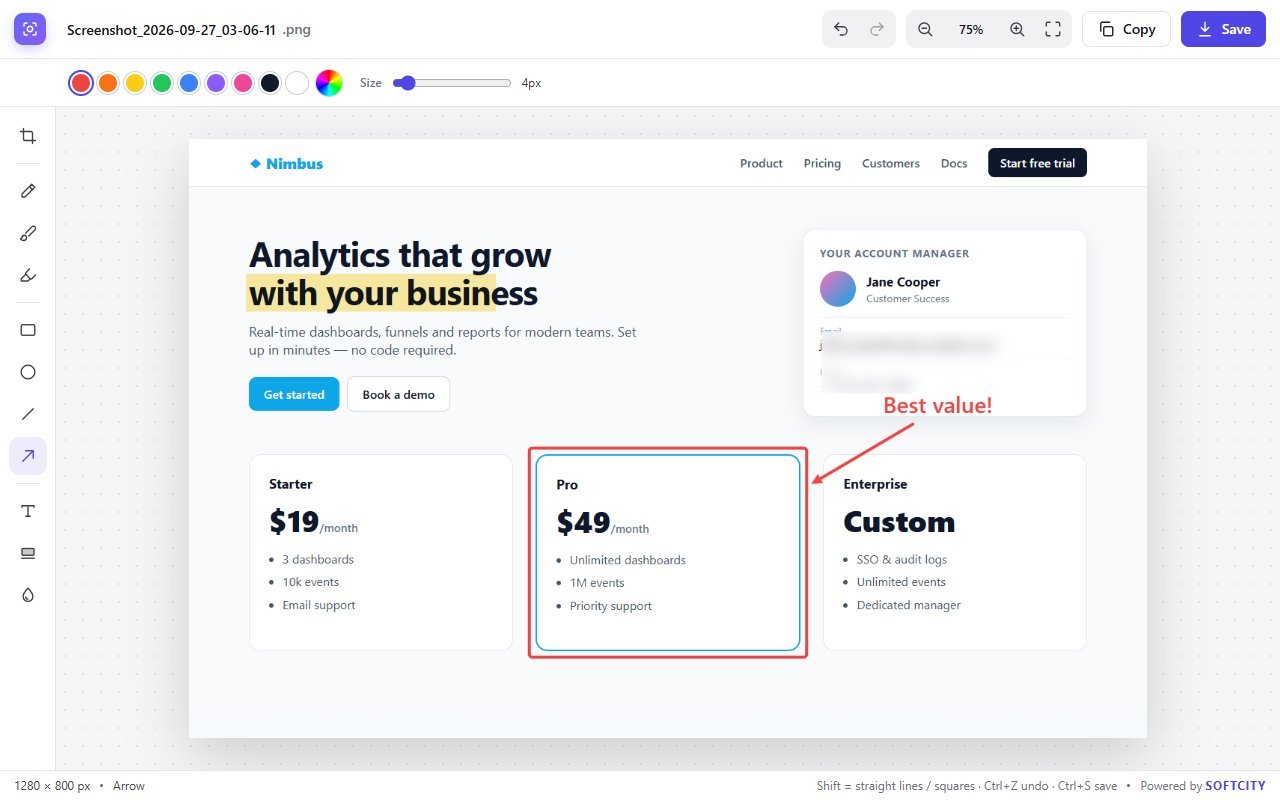
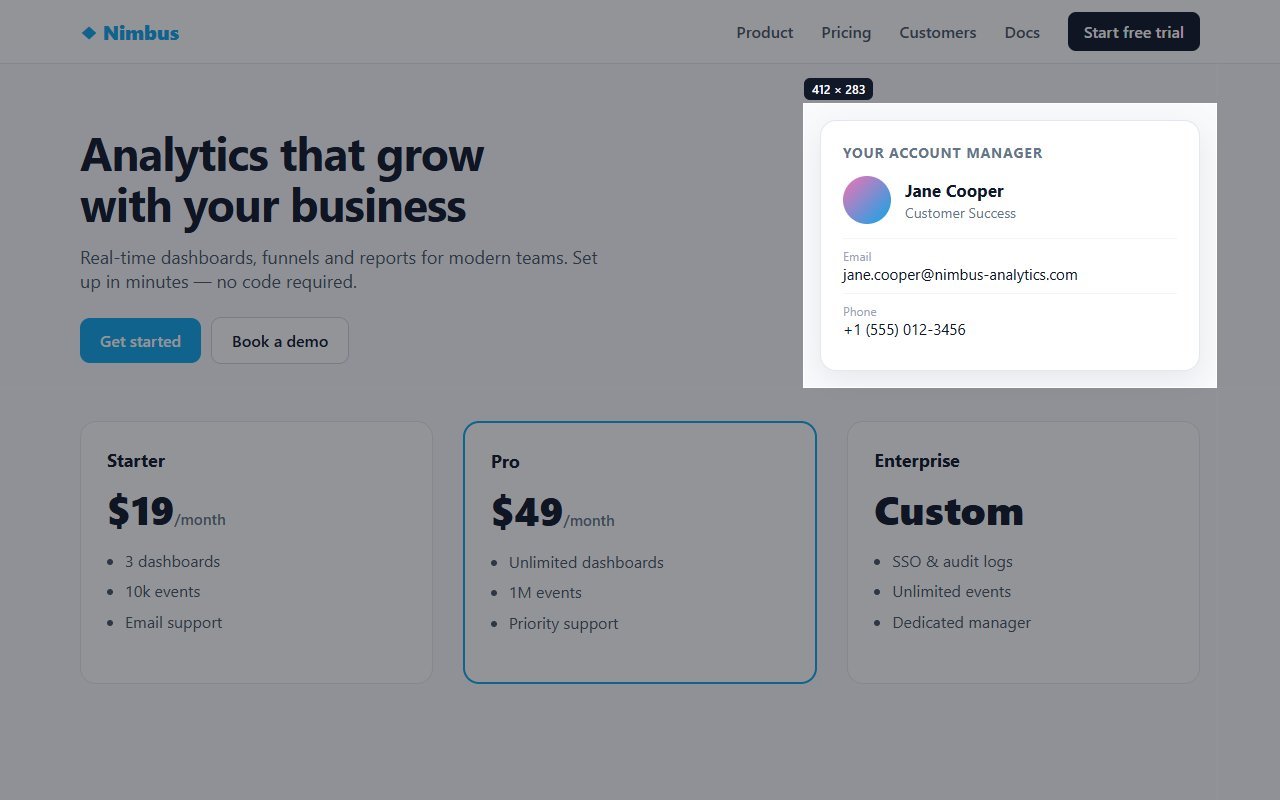
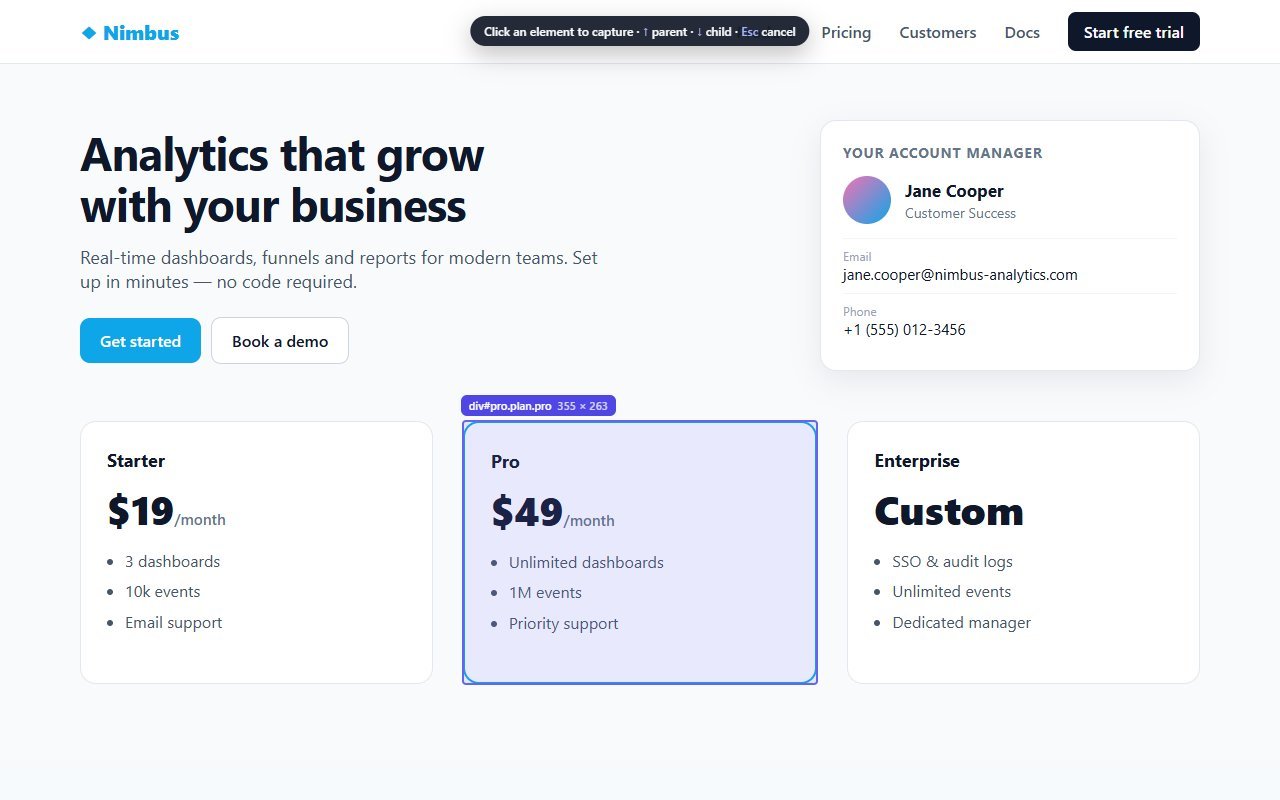
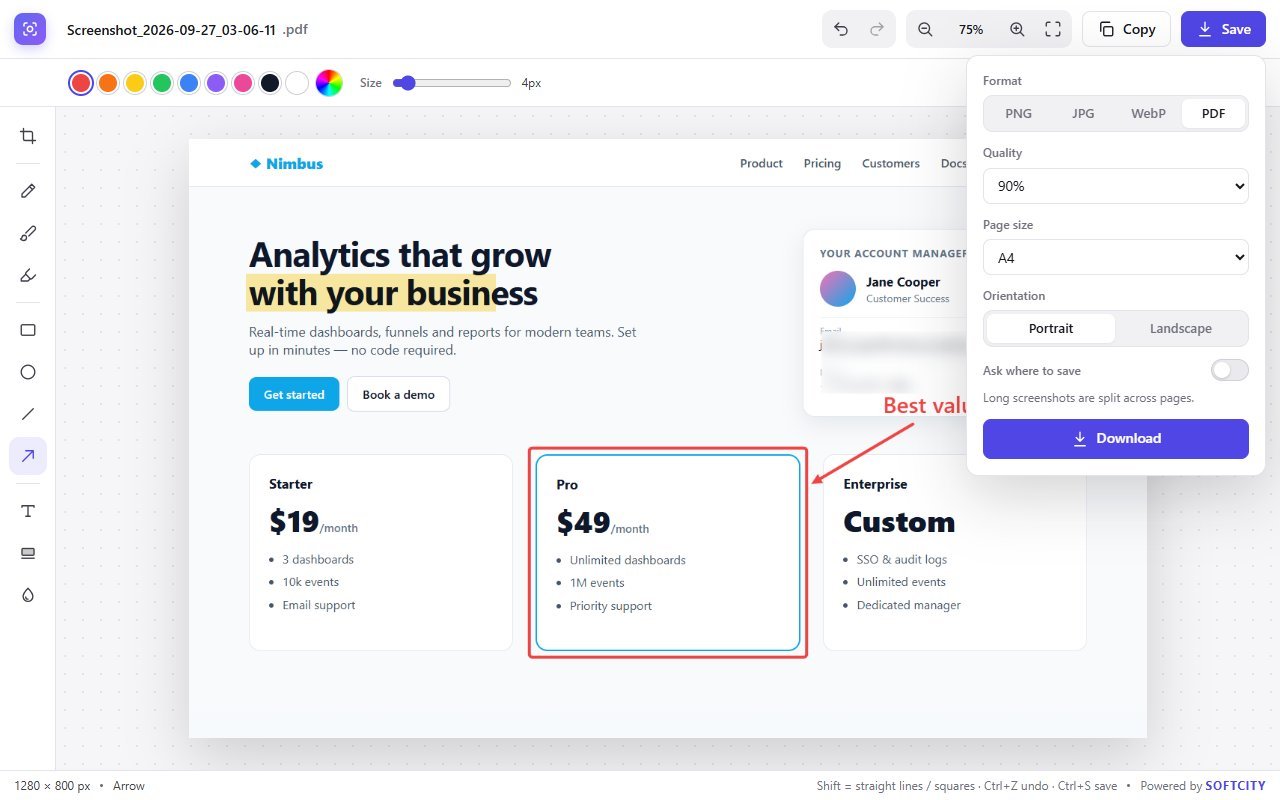
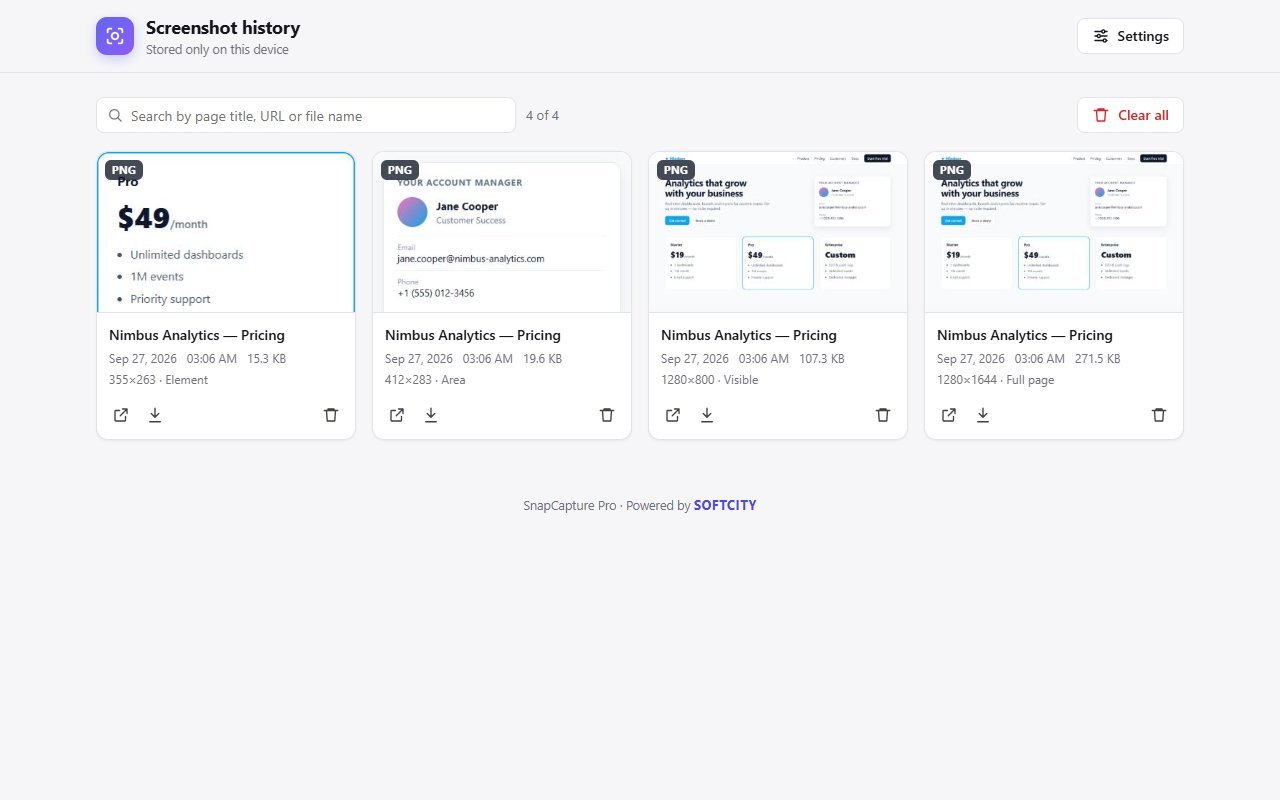
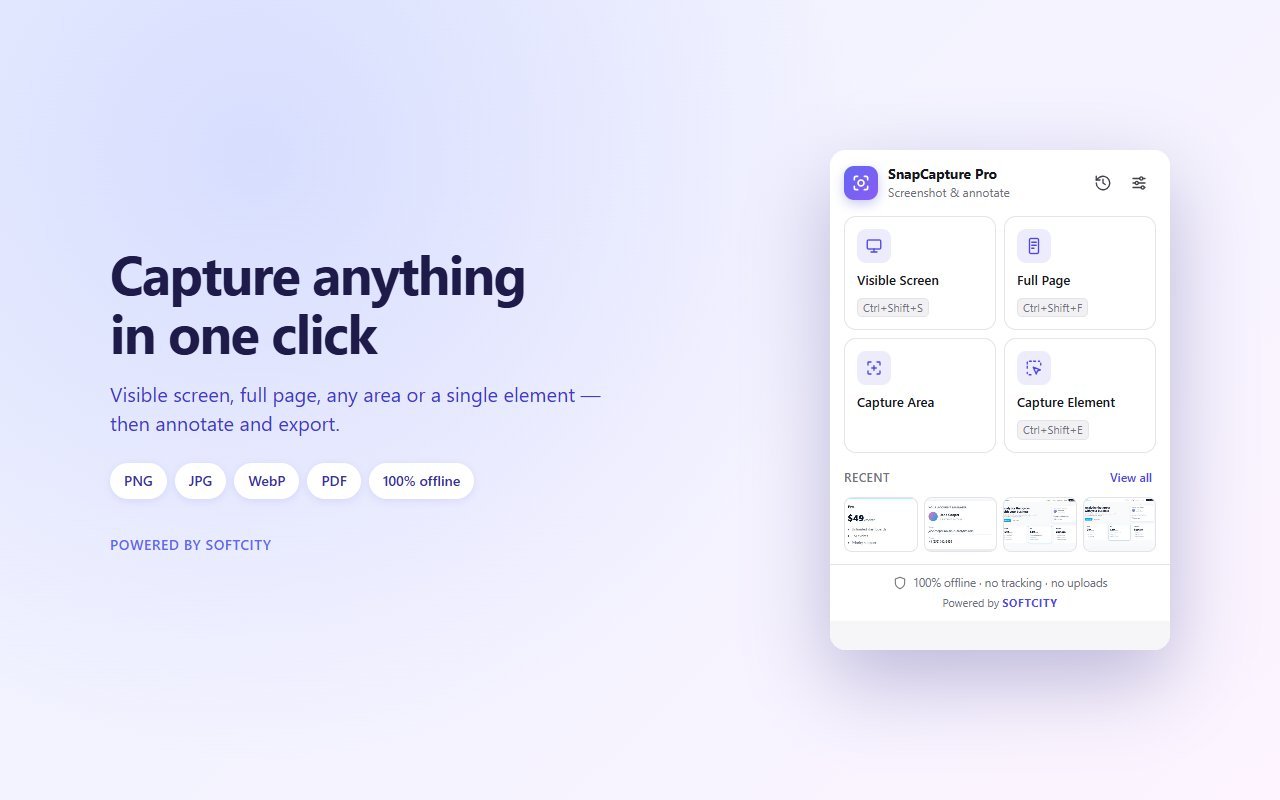
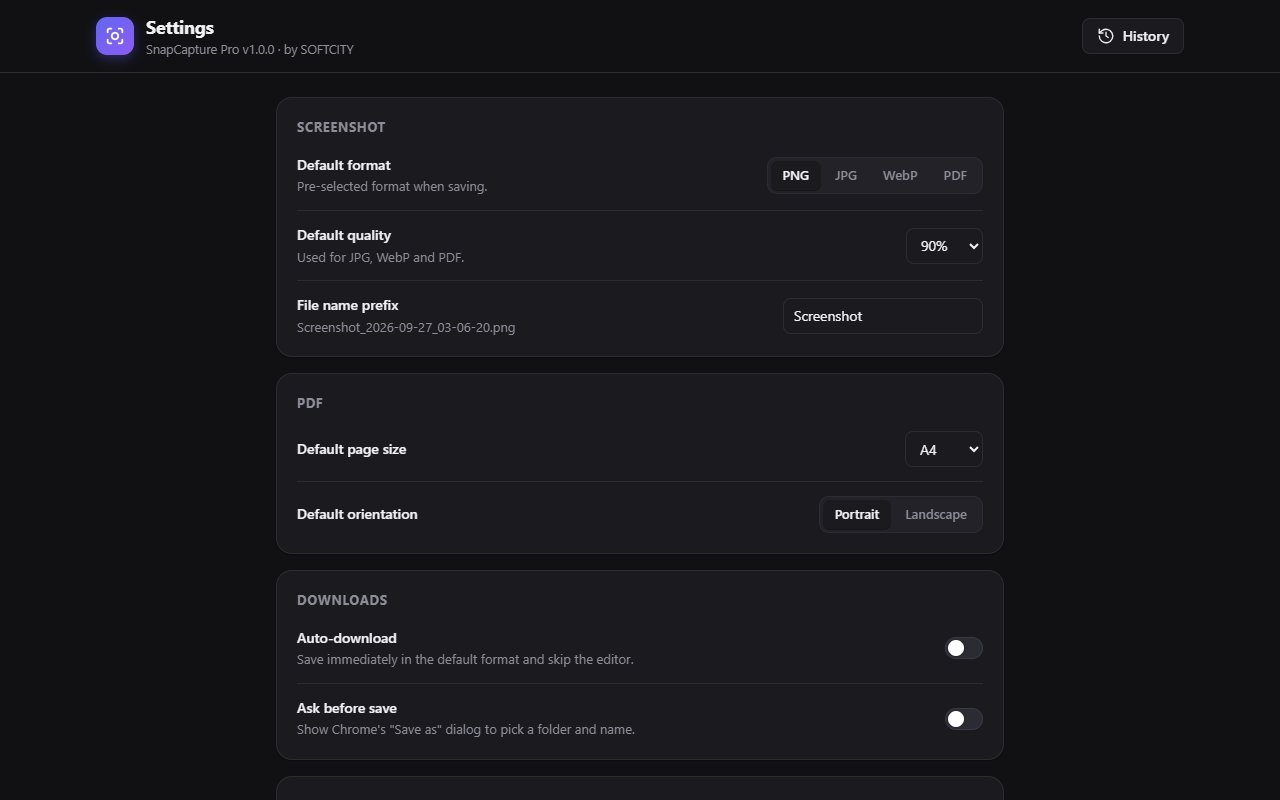
Four ways to captureVisible screen — capture what you see in one click.Full page — scrolls and stitches the whole page into one image, including long landing pages, blogs, stores and dashboards. Sticky headers appear only once.Area — drag to select any part of the screen, with a live size label.Element — hover to highlight a card, banner, table, form or chart, then click to capture just that element.Built-in editorCrop: free, square, 16:9 and 4:3Pencil, brush and markerRectangle, circle, line and arrowText with font, size and colourHighlighter with adjustable transparencyBlur or pixelate emails, phone numbers, addresses and other private detailsUnlimited undo and redo, zoom, and copy to clipboardSave your wayPNG — lossless qualityJPG and WebP — choose 100%, 90%, 80%, 70% or 50% qualityPDF — A4, Letter or Legal, portrait or landscape. Long pages are split across pages automatically.Rename files before saving. Default names look like Screenshot_2026-09-27_10-15-30.png.History and settingsScreenshot history with thumbnails, date, time, format and size. Open, download again or delete.Default format, quality and PDF options, auto-download, and "ask where to save"Light, dark and system themesKeyboard shortcuts: Ctrl+Shift+S (visible), Ctrl+Shift+F (full page), Ctrl+Shift+E (element). You can set a shortcut for area capture at chrome://extensions/shortcuts.Private by design
No tracking, no analytics, no cloud uploads and no sign-up. Every screenshot stays in your browser.
Powered by SOFTCITY.
How to install
Six steps, about a minute. You only do this once.
-
1
Click Download ZIP.
-
2
Right-click the downloaded file and choose Extract All.
-
3
Open
chrome://extensionsin Chrome.chrome://extensions Paste it into Chrome's address bar — websites cannot link to it directly. -
4
Turn on Developer mode (top-right).
-
5
Click Load unpacked and select the extracted folder — the one that contains
manifest.json. -
6
Pin the extension from the puzzle icon in the toolbar.
Updates are not automatic. To update, download the new version and click Reload on chrome://extensions.
Permissions
What this extension is allowed to do, in plain words:
-
Access the current tab only when you click the extension
activeTab -
Read tab titles and URLs
tabs -
Save settings on your device
storage -
Save files to your computer
downloads -
Run the extension's scripts on the page you choose to capture
scripting
What’s new in 1.0.0
Privacy
SnapCapture Pro is developed by SOFTCITY. This policy explains how the extension handles your information.
Information we collect
None. SnapCapture Pro does not collect, transmit, sell or share any personal data. It has no accounts, analytics, tracking, advertising or cloud servers.
How your screenshots are handledScreenshots are created and edited entirely inside your browser.Your settings and screenshot history are stored only on your device, in Chrome's local storage and IndexedDB. They never leave your computer.Files are saved only to your computer when you choose to download them.You can delete any screenshot, or clear your whole history, at any time from the History or Settings page. Removing the extension deletes all of its stored data.PermissionsactiveTab — capture the tab you are viewing, only when you start a capture.tabs — read the page title and address to label your screenshots.scripting — show the area and element selection tools and scroll the page for full-page captures.storage — save your settings and history on your device.downloads — save screenshots to your computer.Third parties
The extension does not use any third-party services, libraries that send data, or remote code.
Changes
If this policy changes, the updated version will be published on this page with a new date.
Questions or problems? Contact SoftCity.